LS One POS Hospitality Operations
There are a few operations in LS One POS that are specific to hospitality. This chapter will go through these operations and any configurations needed.
These operations need to be added to the active till layout that can be set on either each staff member, terminal, store or hospitality type.
Exit Hospitality POS
This operation needs to be added to the till layout so that the user can go between the Hospitality dialog and the main LS One POS retail dialog. If this operation is not added to the till layout, the user will never be able to get back into the Hospitality dialog after selecting the Run POS operation.
Split Bill
This operation can be added to the till layout to allow the user to go into the Split bill operation both through the Hospitality functionality and the retail functionality. This operation is not necessary for the Hospitality functionality to work.
Set Hospitality Menu Type
This operation will set the menu type of the item selected and any items added after that will have the same menu type until it has been changed by selecting another value with the operation.
The menu types that should be available in this operation need to be set on each store. See description of the Menu types configurations in Menu Types.
Change Hospitality Menu Type
This operation changes the current menu type of the selected item.
The menu types that should be available in this operation need to be set to each store. See a description of the Menu types configurations in Menu Types.
Print Hospitality Menu Type
Displays a dialog with all available menu types and a Print all button. The user can send a specific menu type to be printed at a printing station, or all items by clicking the Print all button. Items are only printed once when added or changed. So if items are added or changed after printing, only the new items will be printed after that.
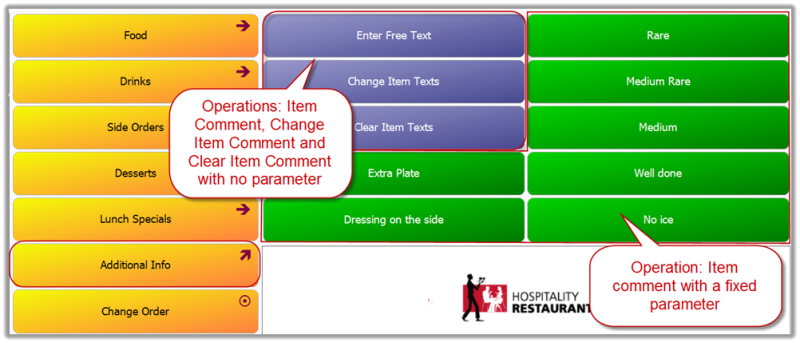
Item Comment
The Item Comment operation can be used in Hospitality to set fixed texts to make specific guest requests easier. For example buttons can be configured to have texts such as “No Ice”, “Dressing on the side”, “Rare”, “Well Done” and etc. The comments can be changed by using the Change Item Comment operation and deleted all together from the item by using the Clear Item Comment operation.