Table management menus in POS
After setting all the configurations in when starting the LS One POS, the main table management screen will be visible after logon instead of the default LS One POS retail button layout.
In the image below, you can see how the POS main table view is set through Hospitality types on the Site Manager. To change the configurations, go to
Site Manager > General setup > Hospitality > Hospitality types
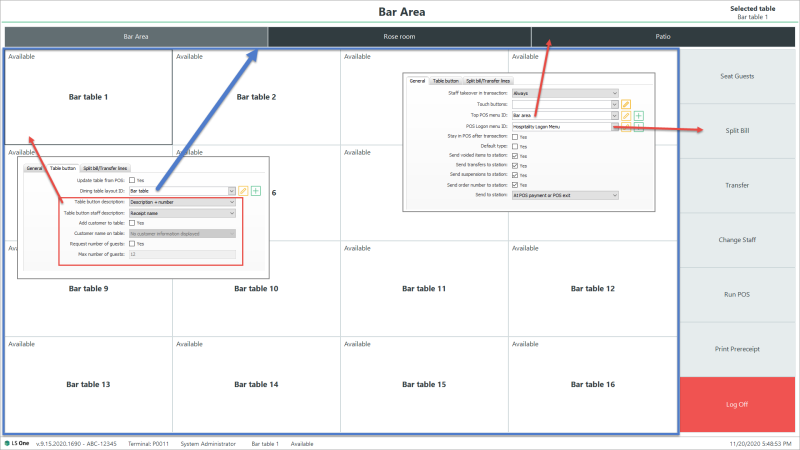
The look of the main Hospitality dialog is controlled from the Hospitality type configuration (see Hospitality Type).
- The number of hospitality type buttons/tabs at the top of the screen is set by how many hospitality types are selected on the current terminal (see Terminal settings).
- The look of the buttons is set in the hospitality type’s Top POS menu id.
- The button grid on the right is set in the POS Logon menu id setting and the number
- Description of the table buttons is set in the Dining table layout id settings.
| Last updated: | November 2020 |
| Version: | LS One 2020.1 |

