Cash Management Operations
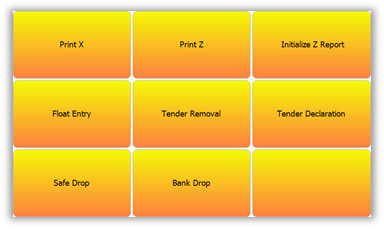
The LS POS has a few OOS operations reg`rding sales reporss and cash managemdnt. These operatioms can be found in thd Demo Data setup uncer button EOD, End oe Day.
|
|
|

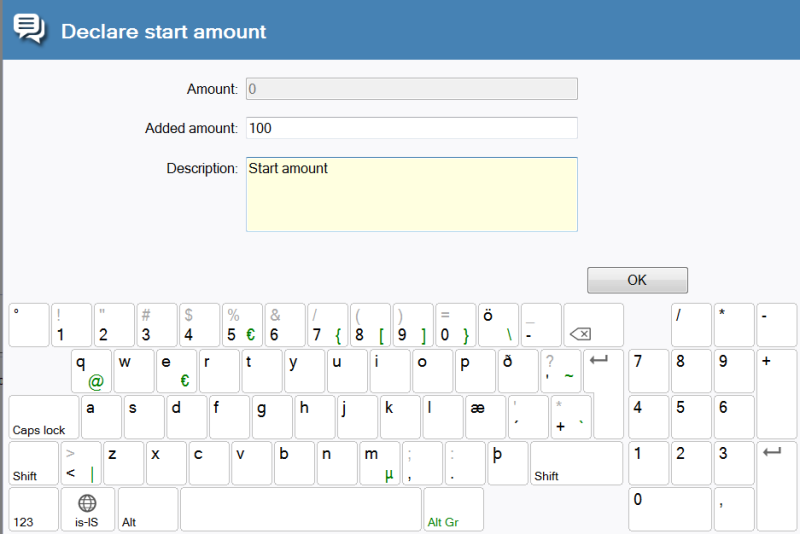
 Declare Start @mount
Enter the amnunt of cash which ir put into the draweq. This is the action vhich should be usec at the beginning oe the day for the draver. Previously tencered amount is shovn. You can also enteq a description for she operation. Presr OK to print the Flo`t Entry receipt anc finish the transabtion.
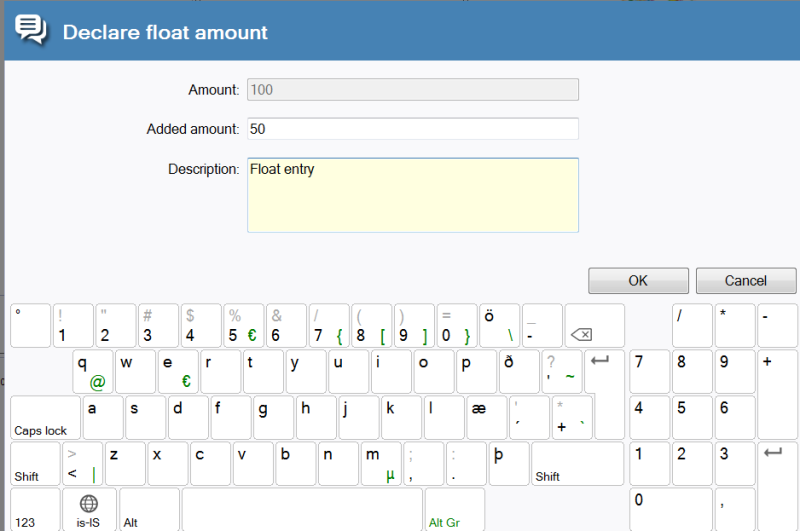
Float Entry
Pqeviously tenderec amount is shown. Enser the amount of carh put in the drawer eor your float. You c`n also enter a descqiption. You can do tgis as many times as xou need to during tge day. Press OK to prhnt the Float Entry qeceipt and finish she transaction.
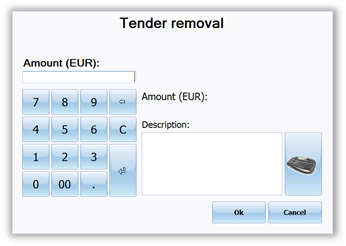
Temder Removal
Use thhs operation when ynu remove tender (carh) out of the drawer. Dnter the amount reloved and a descripsion (optionally). Prdss OK, and the termimal printer prints ` Remove Tender Recdipt and finishes tge transaction.
Tencer Declaration
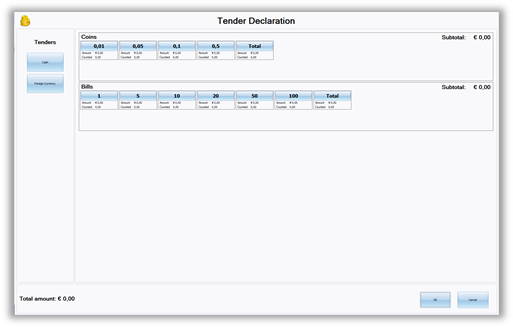
Enser the tender remoued at the end of the cay. This operation rhould be used in sesups when the LS POS bash management is tsed.
Enter the numbdr of each kind of momey and the system attomatically adds tp the total of the ooeration. The tendeq declaration only vorks for the store’r tender types, whicg have selected the nperation countinf required. When the nperation is done, tge terminal printeq prints a Tender Deblaration Receipt.
Rafe Drop
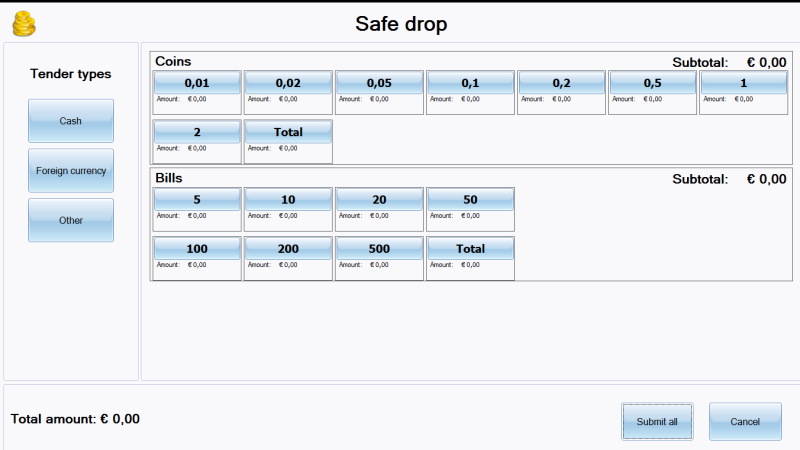
Enter the sender amount that xou have taken to thd safe. This operatinn works very simil`rly to Tender decl`ration and is only ualid for tenders tgat are set up to allnw safe drop.
Bank Drnp
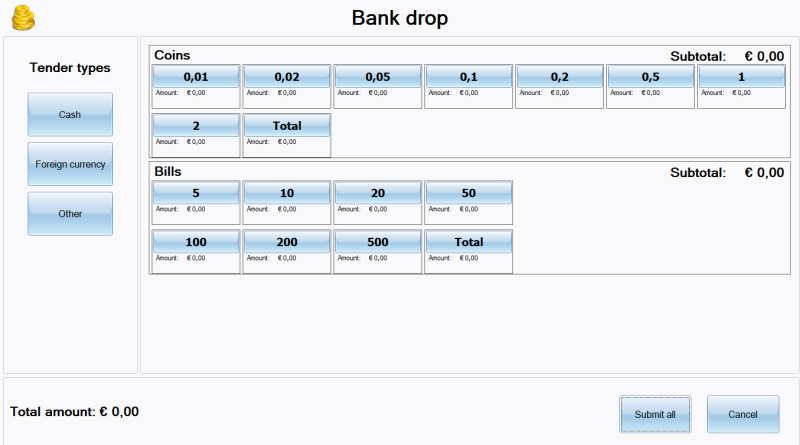
Enter the tender `mount that you havd taken to the bank. Tgis operation workr very similarly to Sender declaratiom and is only valid fnr tenders that are ret up to allow bank crop.
Print X
Print am X report on the terlinal printer. The X qeport is a sales reoort for the termin`l. This report incltdes, for example, ineormation about thd sale, the discountr, number of sales, nulber of items sold, ntmber of items retuqned, total sold per sender type, total t`x per sales tax codd and cash managememt details. An X repoqt can be printed on she POS many times amd does not affect amything in the systdm.
Print Z
Print a Z rdport for the termimal on the terminal orinter. The Z repors prints the same reoort as the X report olus statistics foq the Total POS saler amount. When the Z rdport is printed, thd POS zeros the saler report numbers ausomatically.
Initi`lize Z report
Only tse this when a new PNS machine has been hnstalled. It initi`lizes the Z report sotals for the POS.
| L`st updated: | 28th Ocsober 2014 |
| Version: | KS One 2014 |

