Distribution Locations
A distribution location is any location that can produce or receive data. In other words, your head office, stores and terminals/POSs are distribution locations. The three most important attributes of a distribution location are:
- The information needed to connect to the Data Director handling the location, if any
- The information needed to connect to the database at the location, if any
- The design schema of the database at the location, if any
A location can also contain other locations. In that case the location is said to have member locations. In such cases, a location can have 2 states:
- The location only has network and/or database information and has no member locations.
Example: Stores and POSs. - The location has only member locations and no network or database information.
Example: A group of POSs or a group of Stores.
The third state is also possible but is not recommended: The location has network and/or database information and has one or more member locations. You should avoid defining locations with this setup since it might complicate your distribution strategy.
Locations are automatically generated and maintained for all stores and terminals defined in the Store Controller. Additionally, a group location is created for each store containing all of its terminals.
To view the distribution location view, go to General setup > Replication >Distribution locations.
When you edit a distribution location, a view opens.
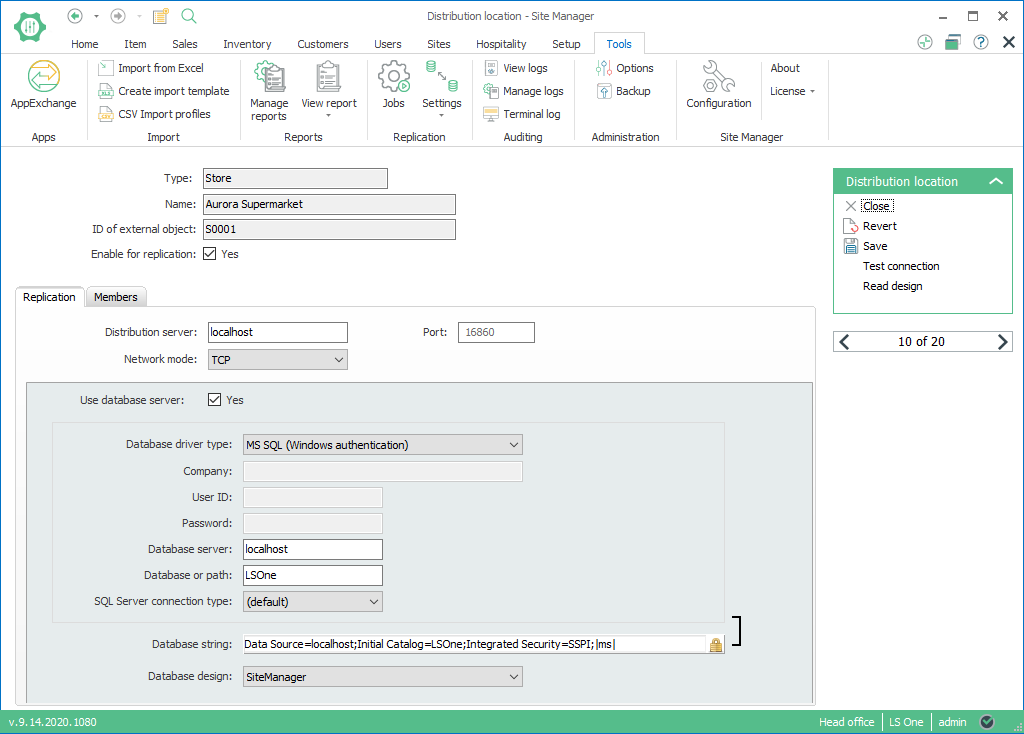
Using this view, you can set up how to connect to the Data Director at this location, how to connect to the database at this location (if any) and which database design the Data Director should expect on the location.
The Test Connection button enables you to test if the connection to the Data Director at this location is valid. If the location has a database server, the connection to the database will be tested as well.
The Read Design button enables you to connect to the database on this location and read design information on all tables and fields in the database. This design is then automatically assigned to the current location. You can also re-use designs amongst other locations by selecting a design from the Database design drop-down combo box.
When you click on the Read Design button, the Read Database Design dialog box appears.
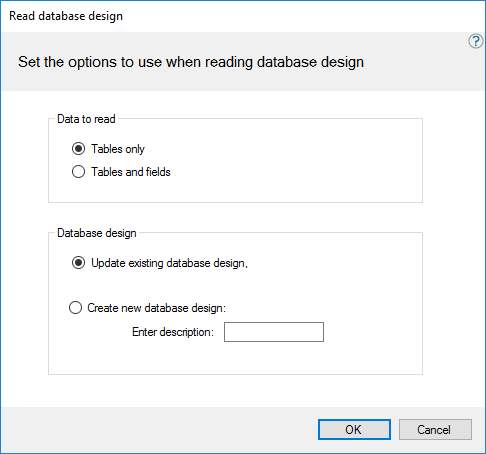
In the Data to read group box you have two options:
- Tables only. When this option is selected, only the table names of the database will be read, and no field information will be read. Field information can then be read later as needed in the Database design view (see section Database designs and linked tables).
- Tables and fields. Both table names and fields will be read for the entire database.
In the Database design box you have the following options:
- Update existing database design. This option is only enabled if the distribution location already has a database design assigned to it. The existing database design will be updated.
- Create new database design. A new database design will be created. A description of the new database design must be entered in the Enter description field.
Click OK to perform the read and update/creation of the database design.
| Last updated: | 29th November 2016 |
| Version: | LS One 2016.1 |

