Receive a transfer order

When inventory has been sent from one store to another the transfer order needs to be marked as received. The items and quantities can be edited if the whole order did not make it to the finishing point.
Receive a transfer order
- Select Inventory > [Transfers] Orders > Manage transfer orders
- Select the Incoming tab in the list view to view all transfer orders being sent to your store.
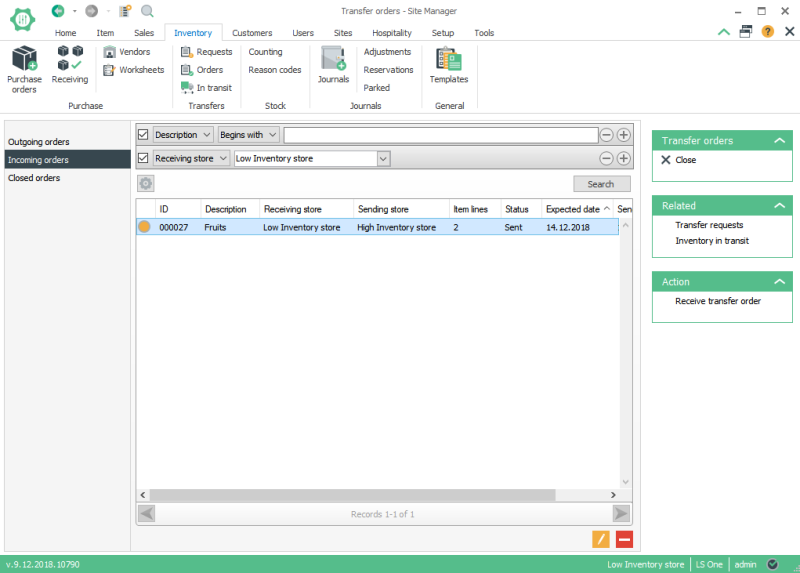
- From the list of transfer orders that is displayed select to view/edit the transfer order you like to receive
- Enter the quantity of each item you received.
You can edit the quantity for each line or you can select the option to Auto set quantity from the action menu on the right.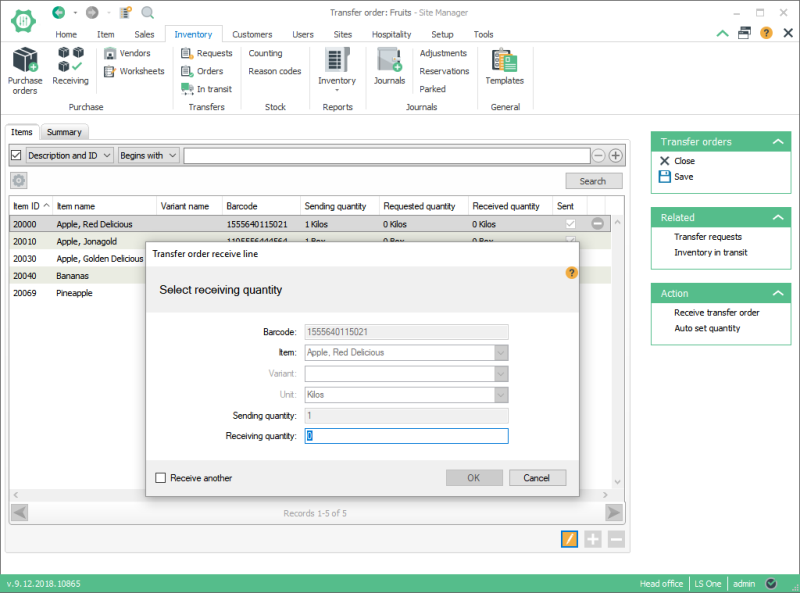

Notice that the received quantity is default set to be zero units for all items on the order. Before we select to receive the order we need to update the received quantity for each item to be according to the number of units we actually received. This can be done by manually editing each line or automatically set the received quantity to be the same as the sending quantity by clicking the action button called Auto set quantity. (We can edit the received quantity after having automatically set the value for received quantity).
- Click the Receive transfer order button from the action menu to the right.
Reject a transfer order
An incoming order can be rejected. If for some reason there is a need to reject an order it's done by right-clicking the order and select the option Reject. The order is then closed. For a rejected incoming order the inventory on hand is adjusted accordingly for the sending store.
See also
| Last updated: | January 2019 |
| Version: | LS One 2019 |

