How to add a new report
LS One has a reporting system that allows to add customized reports to your setup. LS Retail also provides a selection of reports you can select from and use. Check Report library for availability.
To add a new report to your LS One Site Manager you need two files
- Name_of_report.rdlc
- Name_of_report.rpdsc
 How to add reports
Follow the steps:
- Save the report files to any location on your drive.
- Open your Site Manager and browse to Tools > Reports > Manage reports
- Press the
 button and the Add report dialog opens.
 - To the right of the Report description file press the
 button. Browse and select your .rpdsc file.
 - To the right of the Report file press the button. Browse and select your .rdlc file.
- Press OK.
- Now the file has been added to your report library.
How to control where the report is accessible
- If you are not already in the Report Manager view browse to Tools > Reports > Manage reports
- Select the report you want to edit and press the
 button and the Manage report dialog opens.
 - In this dialog the possible contexts available for this reports are selectable. These are:
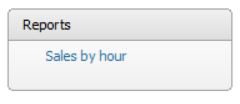
- Report - Select to show the report in the View report drop down list
- Customer - Select to show the report in the report context menu in the right hand menu in the Customer view
- Retail item - Select to show the report in the report context menu in the right hand menu in the Retail item view
- Store - Select to show the report in the report context menu in the right hand menu in the Store view
- Terminal - Select to show the report in the report context menu in the right hand menu in the Terminal view
- Vendor - Select to show the report in the report context menu in the right hand menu in the Vendor vie
- Report - Select to show the report in the View report drop down list
-
Select where you want to be able to access the report and press OK.

Not all the contexts are available for all reports. It depends on the design and content of the report where you can open the report.
How to view the report
The reports can be accessible from more than one location in the Site Manager. It depends on the settings selected in the Manage report dialog. See more information on how to control where the report is accessible.
View report drop down
- Reports can be set to only be accessible from the View report drop down menu using the Report context
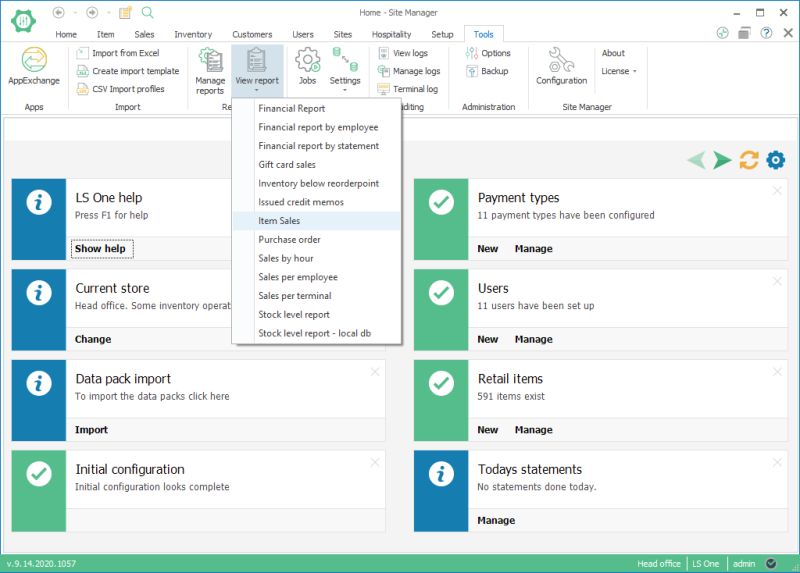
Open Tools > Reports in ribbon and click on the View report button. When you do so a drop down menu is expanded and you can select the report you want to view from there.
Context placed reports
- Some reports are accessible from selected views in the Site Manager. For an example all items sales reports could be available from the item view and all customer ledger reports available from the customers view.
- Customer - Browse to Retail > Customers > Customers > Edit any customer
- Retail item - Browse to Retail > Retail items > Retail items > Edit any item
- Store - Browse to Store setup > Stores > Stores > Edit any store
- Terminal - Browse to Store setup > Terminals > Terminals > Edit any terminal
- Vendor - Browse to General setup > Inventory > View all vendors > Edit any vendor
 Not all the contexts are available for all reports. It depends on the design and content of the report where you can open the report.

