Generate a stock counting journal from a filter
Inventory > Stock > Counting > Generate from a filter
What is the dialog used for?
- Create a stock counting journal from a filter created by the user. When Finish button is clicked then the filtered items are added to the new journal.
 Search filter
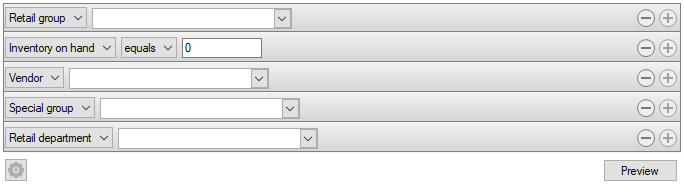
Items can be searched for in a filtered search. One filtering line is added for each type of filter.
| Fields & buttons | Description |
|---|---|
|
Select a filter type for each search filter line. 
Adding the inventory on hand band will not filter the preview list, but the value will be used when generating the stock counting journal. |

|
If there are more than one line press this button to delete a search criteria. |

|
Press this button to add search criteria and narrow the filter. |

|
The following actions are available from a drop down menu when this button is pressed.
|
| Button: Preview |
Press this button or hit enter button on keyboard to activate a search with the filters set. A preview of the results for the filter is displayed. |
Preview of a filter result
| Fields & buttons | Description |
|---|---|
| Item ID | Displays item ID. |
| Description | Displays item description. |
| Variant description | Displays variant description. |
| Inventory unit | Displays the item's inventory unit. |
| Retail group | Displays the item's retail group. |
| Retail department | Displays the item's retail department. |
| Vendor | Displays vendor description. |
| Preview | Click on this button to preview the items on the journal being created. |
| Next | Click on this button to finalize the journal. |
This filter is not saved anywhere, the next time the user selects this option he needs to enter the filter again. If he wants to save a filter then a template needs to be created.
See also
| Reviewed: | August 2017 |
| Version: | LS One 2017.2 |

